Recoloring Assets
When you download an asset / avatar that supports EZRecolor, there will be materials within the Unity Project that have the EZRecolor Shader applied. There should also be a prefab included as well, but that's on the Asset Creator to include at least one.
We will be using the Avigen by Mike Da Bird (the developer of EZRecolor) to demonstate how an EZRecolor workflow goes.
Find the Materials
You have two ways of editing the materials:
- Navigating to the folder containing the EZRecolor materials and editing them using the Project Tab;
- Finding the included EZRecolor Prefab (either in the Project Folder or Sample Scene), selecting the Mesh Objects in its hierarchy (in the Hierarchy Tab) and editing them using the Scene Tab.
In the case of our example asset, there is a prefab included within the Sample Scenes, so we'll use that.
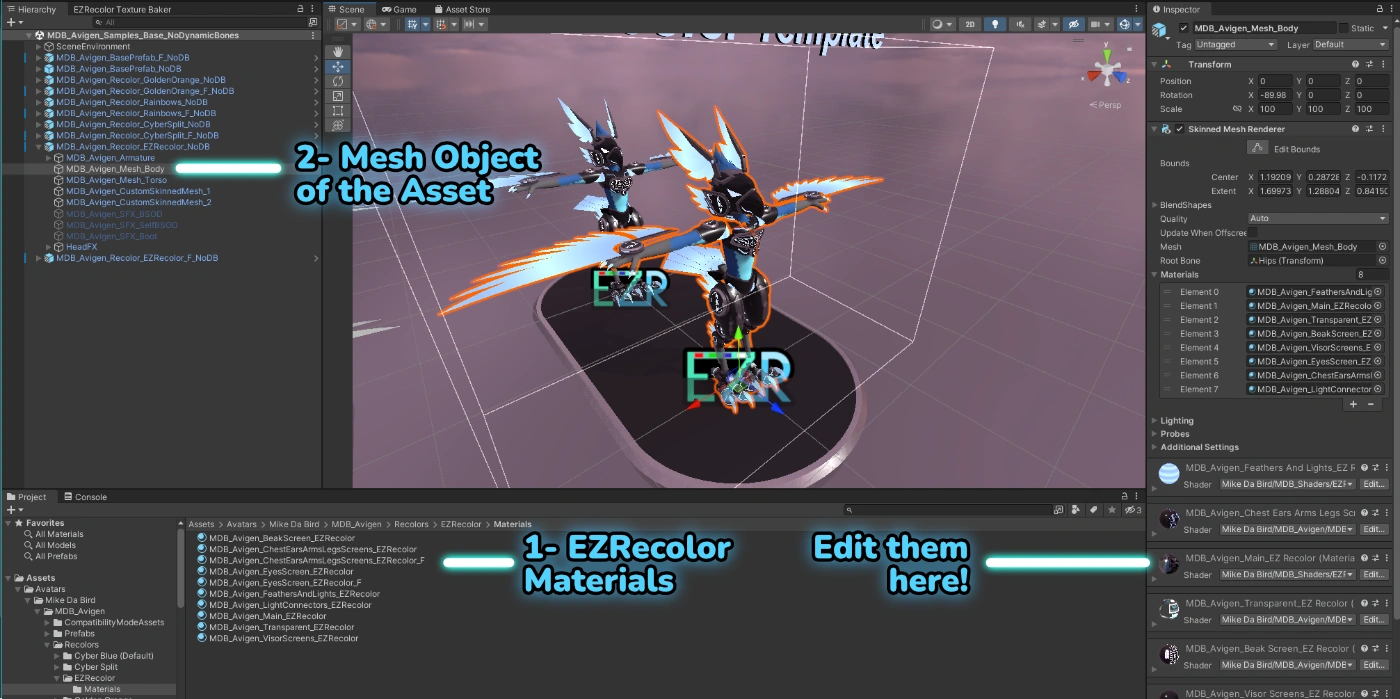
Location of 1- materials; and 2- prefab mesh of the Avigen, and where to edit the materials
It is HIGHLY recommended to make a copy of the EZRecolor Materials (by for example duplicating the folder containing them) and editing those instead of the original ones. That way, if you update the asset, your EZRecolor will not be overridden!
To make a duplicate, select your materials / containing folder in the Project Tab and press Ctrl + D. You can then rename the materials / folder to your own desire. Don't forget to assign these new materials to the prefab!
Recoloring Process
Now that we've got the Materials, it's time to edit them! You will see in the Inspector Tab the properties of the currently selected material. If selecting through a prefab, selecting one of its Mesh Objects will display all of its materials in the Inspector Tab.
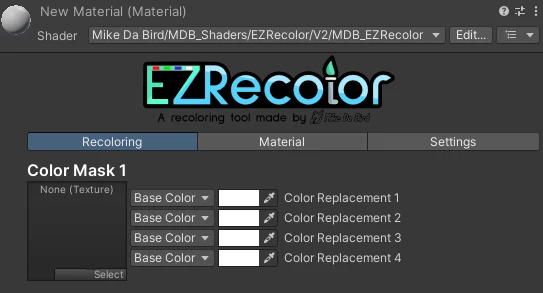
A fresh and empty EZRecolor Material using the official EZRecolor Shader
An EZRecolor Material will have at least one Color Mask and at least one Color Replacement field. As a User recoloring a premade asset, all you need to do is modify the Color Replacement fields.
Repeat the process for all EZRecolor Materials of the asset.
Since EZRecolor can be implemented in Custom Shaders by Creators and that they can add custom Labels, note that Shader Creators can name these however they may please, even if the recommendation for them is to label these fields in a similar fashion. A Material could have a color named "Emission" that is a Color Replacement, while it could also have a "Diffuse" color that is NOT one. If this is something you've noticed in a shader, please scream (politely) at the shader maker and not me (unless I'm the one that made a problematic shader, THEN scream at me).